Buying a domain name is an exciting milestone. It means you’ve taken the first real step toward building an online presence, whether it’s for a business, blog, personal brand, or a future project you’re still planning.
But here’s something many first-time buyers don’t realize:
Buying a domain name alone does not give you a website, email, or online visibility.
A domain is simply an address. Without the right setup, it sits idle, unsecured, unconfigured, and invisible to the world. Worse, neglecting a few simple steps can lead to losing your domain entirely, exposing your personal information, or falling victim to domain hijacking.
In this complete guide by HashDomains, you’ll learn exactly what to do after buying a domain name, step by step. Whether you’re a first-time buyer or someone who just picked up a new domain for a project, these 6 key actions will protect your investment, prepare your domain for real use, and build a strong foundation for long-term online success.
Why the Steps After Buying a Domain Name Matter
Most people focus all their energy on finding the perfect domain name. But what happens after the purchase is what actually determines success.
Common mistakes domain owners make:
- Forgetting to enable domain privacy protection
- Skipping the domain lock and leaving it open to hijacking
- Never configure DNS settings properly
- Losing the domain due to missed renewals
- Using a throwaway email that they later lose access to
- Leaving the domain completely unused for months
By following the right steps immediately after purchase, you can:
- Protect your personal identity and ownership
- Prevent domain theft and unauthorized transfers
- Set up a professional email and website foundation
- Signal credibility and trust to visitors and search engines
- Save significant time, money, and frustration down the road
Let’s walk through all 6 essential steps, plus some bonus actions that most beginners skip.
Step 1: Confirm Domain Ownership and Update Your Contact Details
The very first thing to do after purchasing a domain is to verify that everything is correctly registered under your control.
Log in to your registrar and verify the Following
- The domain appears in your account dashboard
- Registration status shows as Active
- The registration period is what you selected (e.g., 1 year, 2 years)
- The expiration date is clearly visible and noted somewhere safe
This sounds basic, but errors do happen, especially during promotions when registrars process thousands of orders simultaneously. Always double-check.
Update Your WHOIS Contact Information
Your WHOIS contact details are the official record of who owns the domain. Even if you plan to hide them with privacy protection (more on that in Step 2), make sure the underlying information is:
- Accurate: your real name and current details
- Active: an email address you regularly check
- Long-term: not a temporary inbox or work email you might lose
Why This Matters More Than You Think
Your registrar contact email is used for:
- Domain renewal reminders
- Transfer approval requests
- Security alerts and suspicious activity notifications
- Ownership verification in disputes
If you ever lose access to that email address, recovering your domain can be extremely difficult, sometimes impossible, without lengthy legal processes.
Best Practice: Never register a domain using a temporary, disposable, or work email. Use a personal Gmail, Outlook, or other long-term address that you fully control.
Step 2: Enable Domain Privacy Protection (Do This Immediately)
This is one of the most important, and most skipped, steps after buying a domain.
By default, when you register a domain, your personal information is stored in public WHOIS databases. Anyone in the world can look up your domain and instantly see:
- Your full legal name
- Email address
- Phone number
- Physical home or business address
What Happens Without Privacy Protection
Exposed WHOIS data is a goldmine for:
- Spammers: flooding your inbox with offers and scams
- Telemarketers: calling your personal number relentlessly
- Phishing attackers: using your details to craft convincing fake emails
- Domain hijackers: using your info to impersonate you during transfer disputes
How Domain Privacy Works
Domain privacy (also called WHOIS privacy or privacy protection) replaces your personal details in the public WHOIS database with generic registrar contact information. You remain the 100% legal owner, but your personal data stays hidden.
The Cost of Privacy Protection
Most registrars offer domain privacy for free or a small annual fee, usually between $0 and $15 per year. At HashDomains, we consider this step non-optional for every domain owner.
The minimal cost is absolutely worth the protection it provides, especially if you’re registering a domain under your personal name or home address.
Step 3: Lock Your Domain to Prevent Hijacking
After enabling privacy protection, the next critical security step is enabling a domain transfer lock, sometimes called a registrar lock.
What Is a Domain Lock?
A domain lock is a security setting that prevents your domain from being transferred to another registrar without your explicit approval. When enabled, your domain’s status in WHOIS shows:
clientTransferProhibited
This means even if an attacker gains access to parts of your account or contacts your registrar posing as you, they cannot transfer your domain away without additional verification.
Why Domain Locking Is Essential
Domain theft is more common than most people realize. Cybercriminals target:
- Newly registered domains (before owners have locked them)
- Domains with publicly visible WHOIS contact information
- High-value domains (short names, keyword-rich .com domains)
- Accounts secured with weak passwords
Once a domain is transferred away, recovering it is a slow, expensive, and often unsuccessful process.
How to Enable a Domain Lock
Most registrars allow you to enable or disable the transfer lock directly from your domain management dashboard. Look for settings labeled:
- Domain Lock
- Transfer Lock
- Registrar Lock
Toggle it ON immediately after purchase. You can always unlock it later if you intentionally decide to move your domain to another registrar.
Step 4: Decide How You Will Use the Domain
Before touching DNS settings or setting up hosting, take a moment to clearly define what you want to do with this domain. Many beginners skip this step and end up with a confusing mix of configurations that are hard to untangle later.
Ask Yourself These Questions
- Is this domain for a business website or an online store?
- Is it a personal portfolio or a resume site?
- Is it a blog or a content publishing platform?
- Am I parking it for future use?
- Am I holding it as a domain investment to resell?
- Do I want to forward it to an existing website or social profile?
Your Main Domain Usage Options
Build a full website. This is the most common path. You’ll need a hosting provider and proper DNS configuration (covered in Step 5).
Set up a professional email only. Some people buy a domain just for a branded email, for example, hello@yourbusiness.com, without building a full website yet. This is a smart move for freelancers and small business owners.
Domain parking: If you’re not ready to build anything, domain parking displays a placeholder page (sometimes with ads) while you hold the domain. Most registrars offer basic parking for free.
Domain forwarding/redirect: You can redirect your domain to any existing URL, such as your LinkedIn profile, an Etsy shop, or an existing website on a different domain.
Domain investment (buy and hold). Some buyers purchase domains purely as assets, intending to resell them at a higher price later. In this case, your priorities are renewal management and security rather than setup.
Knowing your goal upfront prevents wasted time, unnecessary configuration changes, and costly mistakes.
Step 5: Connect Your Domain to Hosting and Configure DNS
If your goal is to build a website, this is the most technical step, but also the most important one for getting your domain working properly.
Understanding the Difference Between a Domain and Hosting
Think of it this way:
- Domain name = Your address (e.g., 123 Main Street)
- Web hosting = The physical building where your website files live
Your domain needs to point to your hosting provider so that when someone types your domain into a browser, they’re taken to your website.
Two Ways to Connect Your Domain to Hosting
Update Your Nameservers (Recommended for Beginners)
This is the simplest method. Your hosting provider will give you two nameserver addresses (e.g., ns1.hostingprovider.com and ns2.hostingprovider.com). You update these in your domain registrar’s settings, and the hosting provider handles everything else.
Best for:
- Beginners who want a simple setup
- When you’re using one provider for both domain and hosting
Option 2: Manually Configure DNS Records
This method gives you more control. You keep your nameservers at your registrar and manually add or edit individual DNS records. This is ideal for advanced setups or when you’re using multiple services (e.g., third-party email with a different hosting provider).
Common DNS Records You Should Know
| Record Type | Purpose |
| A Record | Point your domain to your server’s IP address |
| CNAME Record | Handles subdomains (e.g., www) and aliases |
| MX Records | Directs email to your email service provider |
| TXT Records | Used for verification (Google, email authentication) |
DNS Propagation: What to Expect
After making DNS changes, your updates won’t appear instantly worldwide. DNS propagation typically takes 24 to 72 hours to fully complete. During this time, some users may see your old settings while others see the new ones.
This is completely normal; it doesn’t mean something is broken.
Pro Tip: Always take a screenshot or note down your existing DNS settings before making any changes. This gives you a reference point if anything goes wrong and you need to restore previous values.
Step 6: Create a Professional Domain-Based Email Address
Even if your website isn’t ready yet, setting up a domain-based email early is one of the smartest moves you can make, especially for business owners and freelancers.
What Is a Domain Email?
A domain email is an email address that uses your own domain name instead of a generic provider like Gmail or Yahoo. Examples:
- hello@yourbusiness.com
- support@yourbrand.com
- contact@yourname.com
Why Domain Email Matters for Your Brand
| Feature | Free Email (Gmail, Yahoo) | Domain Email |
| Looks professional | ❌ | ✅ |
| Builds customer trust | ❌ | ✅ |
| Strengthens brand identity | ❌ | ✅ |
| Reduces spam suspicion | ❌ | ✅ |
| Helps with email deliverability | ❌ | ✅ |
Research consistently shows that people are more likely to trust and respond to emails sent from a branded domain address compared to a generic free account.
How to Set Up Domain Email
Domain email is configured using MX records in your DNS settings. These records tell the internet which server should receive emails sent to your domain.
Most email hosting providers, including Google Workspace, Microsoft 365, and Zoho Mail, provide step-by-step instructions and the exact MX record values you need to add.
Steps typically involve:
- Choosing an email hosting provider
- Creating your email account(s) in their dashboard
- Adding the provided MX records to your DNS settings
- Waiting for DNS propagation
- Logging into your new inbox via webmail or an email client
Bonus Actions: Strongly Recommended for Every Domain Owner
These steps aren’t part of the core six, but skipping them is one of the most common and costly mistakes domain owners make.
Enable Auto-Renewal Right Now
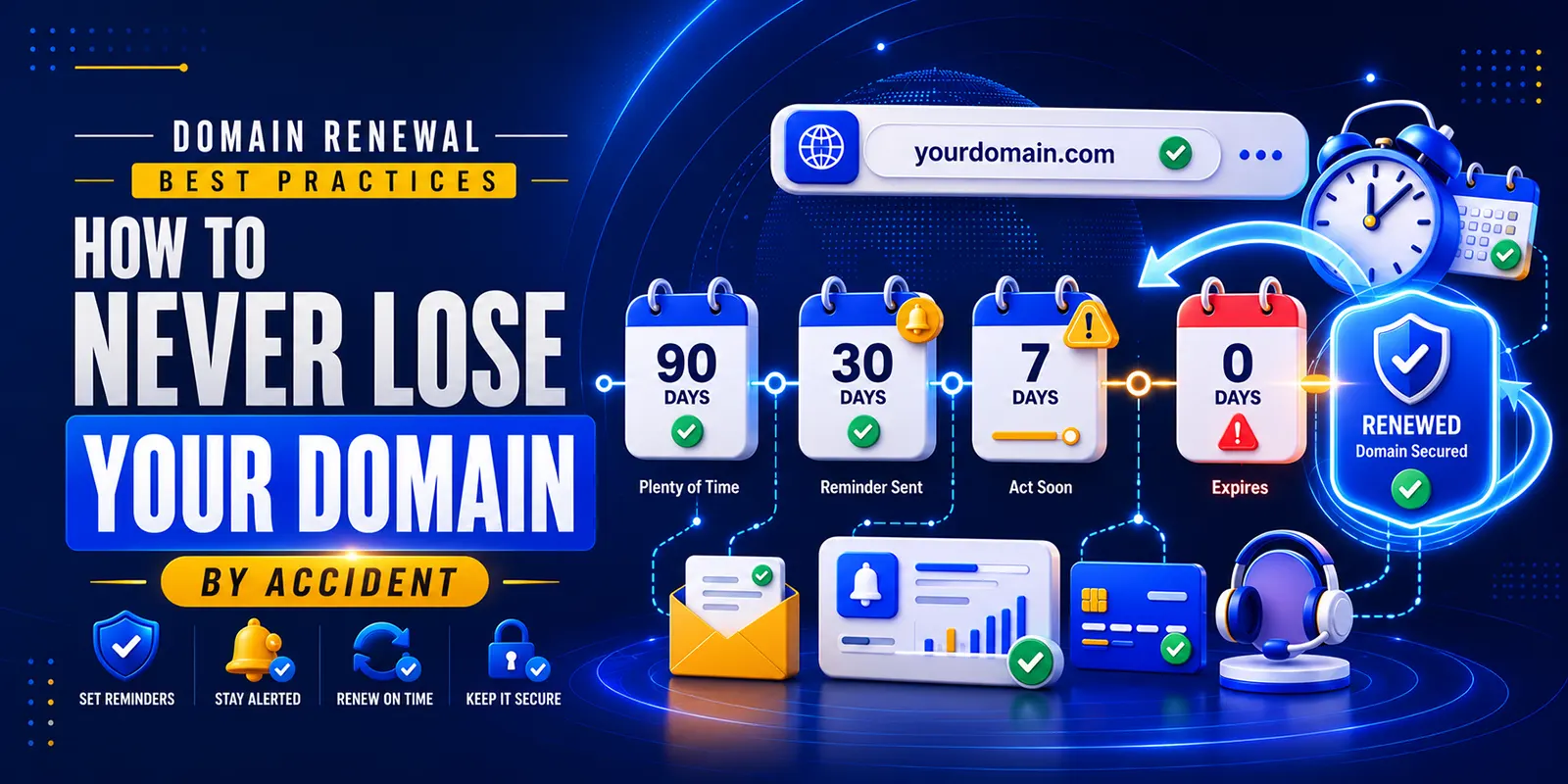
Thousands of valuable domains are lost every year for one painfully simple reason: the owner forgot to renew them.
After a domain expires, it goes through a grace period, then a redemption period, and finally becomes available for anyone to register. If your domain is your brand name, your business identity, or a valuable keyword, losing it can be catastrophic.
Do these three things immediately:
- Enable auto-renew in your registrar settings
- Add a valid, up-to-date payment method to your account
- Set a calendar reminder for 60 days before your expiration date as a backup
Create a “Coming Soon” Landing Page
If your full website isn’t ready, don’t leave your domain showing a blank page or a generic registrar placeholder. A simple “coming soon” page does several important things:
- Confirms your domain is active and owned
- Looks professional to early visitors
- Starts building brand recognition before launch
- Allows you to collect email signups from interested visitors
Your coming soon page doesn’t need to be fancy. Include your brand name, a short description of what’s coming, and a contact email. Many website builders and hosting platforms offer one-click landing page options for exactly this purpose.
Secure Your Registrar Account with 2FA
Your domain is only as secure as the account protecting it. A stolen registrar login can result in domain theft, even if your domain is locked.
Security checklist for your registrar account:
- Use a strong, unique password (consider a password manager)
- Enable two-factor authentication (2FA), use an authenticator app, not SMS if possible
- Secure the email account linked to your registrar with the same standards
- Avoid logging in from public Wi-Fi networks without a VPN
Common Mistakes to Avoid After Buying a Domain
Even experienced domain owners make these errors. Be aware of them from day one:
Forgetting to renew: The most common reason people lose their domains. Always enable auto-renew.
Leaving WHOIS info public: Exposing your personal data invites spam, scams, and phishing attacks.
Not locking the domain: An unlocked domain is vulnerable to unauthorized transfers.
Making random DNS changes: Changing DNS records without understanding them can take your website and email offline.
Using a personal or work email for business: A custom domain email is an easy, affordable upgrade that signals professionalism.
Leaving the domain unused for months: Search engines notice domain age and activity. Starting early, even with a simple coming soon page, is better than waiting.
Frequently Asked Questions
Does buying a domain name mean I have a website?
No. A domain is just an address. To have a functioning website, you need web hosting, a website (built on a platform or coded manually), and proper DNS configuration connecting the two.
Do I need web hosting immediately after buying a domain?
Not immediately, but you should plan for it if the domain is for active use. In the meantime, you can use domain parking or set up a simple landing page.
Can I change my hosting provider later without losing my domain?
Yes. Your domain and your hosting are separate. You can switch hosting providers anytime by updating your DNS records or nameservers. Your domain stays with your registrar.
How long does DNS propagation take?
DNS changes typically take 24 to 72 hours to fully propagate worldwide, though changes often appear much faster, sometimes within minutes.
Will proper domain setup affect my SEO?
Yes, indirectly. Proper DNS configuration ensures your site is accessible and loads correctly. Domain age, security (HTTPS), and consistent uptime all contribute to SEO performance over time.
Can I sell my domain name later?
Absolutely. Domain names are digital assets and can be sold on domain marketplaces like Sedo, Afternic, or Flippa. The value depends on factors like length, keyword relevance, TLD, and brandability.
What happens if my domain expires?
After expiration, most registrars offer a grace period (typically 30 days) to renew at the normal price. After that comes a redemption period where recovery is expensive. Eventually, the domain is released for public registration. Always renew before expiration.
Quick Checklist: What to Do After Buying a Domain Name
Use this as your quick reference guide:
- Log in and confirm that domain ownership is active
- Update and verify WHOIS contact information
- Enable domain privacy protection
- Lock the domain (enable transfer lock)
- Decide on your domain’s purpose
- Connect to hosting or configure DNS settings
- Create a professional domain-based email address
- Enable auto-renewal and update payment method
- Set up a “coming soon” landing page if the site isn’t ready
- Secure your registrar account with a strong password and 2FA
Final Thoughts
Buying a domain name is not the finish line; it’s the starting line. The steps you take in the hours and days after your purchase determine how secure your domain is, how professional your brand appears, and how smoothly your website and email function from day one.
By following these 6 essential steps and the bonus actions outlined in this guide, you’re giving your domain and your online presence the best possible foundation.
Ready to get started? Buy your domain name and SSL certificate today from HashDomains.com, everything you need to launch your online presence, all in one place. And for more in-depth domain guides, DNS tutorials, and expert tips, HashDomains is your trusted source for domain knowledge.