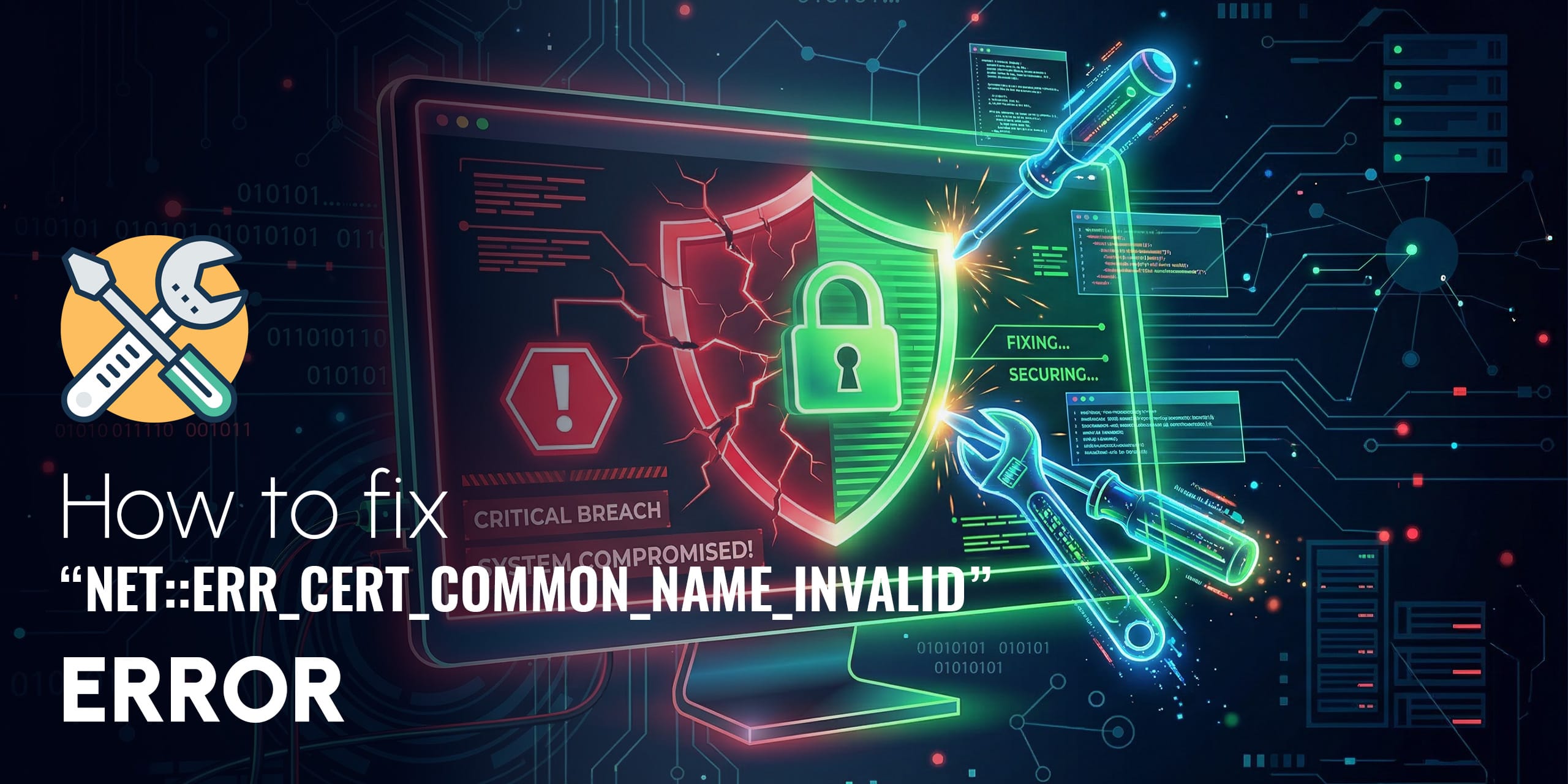
You open your browser, type in a website address, and instead of the homepage, you’re greeted by a big red warning: “Your connection is not private.” Below it, buried in technical text, you see the error code: NET::ERR_CERT_COMMON_NAME_INVALID.
Your first reaction might be panic. Has the site been hacked? Is your computer infected? Is someone intercepting your data?
The good news: in most cases, this is a straightforward SSL certificate problem, either on the website’s end or caused by a simple browser/system setting on your end. It rarely means anything sinister.
In this guide, we’ll explain exactly what this error means, what causes it, and walk you through every proven fix, both for website owners troubleshooting their own SSL setup and for visitors trying to access a site that shows this error.
What Is the NET::ERR_CERT_COMMON_NAME_INVALID Error?
The NET::ERR_CERT_COMMON_NAME_INVALID error is a browser security warning that appears when your browser cannot verify that the SSL certificate installed on a website actually belongs to the domain you are visiting.
Let’s break that down in plain English:
- Every secure website (https://) has an SSL certificate, a digital ID card that proves the site is who it claims to be
- That certificate contains a “Common Name” (CN), the exact domain name the certificate was issued for (e.g., example.com)
- When you visit a website, your browser checks if the certificate’s Common Name matches the URL you’re visiting
- If there’s a mismatch, even a small one, the browser blocks the connection and shows this error
Think of it like showing up to collect a parcel, but the name on the ID card doesn’t match the name on the parcel. The post office won’t hand it over. Your browser operates the same way with SSL certificates.
How Does It Look in Different Browsers?
The error shows up differently depending on which browser you use:
| Browser | Error Message Shown |
|---|---|
| Google Chrome | “Your connection is not private” + NET::ERR_CERT_COMMON_NAME_INVALID |
| Mozilla Firefox | “Warning: Potential Security Risk Ahead” (no error code shown) |
| Microsoft Edge | Red warning page: Your connection isn’t private + NET::ERR_CERT_COMMON_NAME_INVALID |
| Safari | “Safari can’t verify the identity of the website [domain name]” |
What Causes the NET::ERR_CERT_COMMON_NAME_INVALID Error?
Before jumping to fixes, it’s essential to understand what’s actually triggering the error. There are two categories of causes: website-side issues (the site owner’s problem) and visitor-side issues (fixable on your end).
Website-Side Causes (For Website Owners)
1. SSL Certificate Domain Mismatch
The most common cause. The SSL certificate is issued for one domain, but the website is being accessed through another. For example:
- Certificate issued for: example.com
- Visitor accessing: www.example.com
- Result: Mismatch – error triggered
Modern SSL certificates should cover both the www and non-www versions of your domain. If yours doesn’t, you’ll need to reissue it.
2. No SSL Certificate Installed
You’ve set up your website to use HTTPS, but never actually installed an SSL certificate. This is a surprisingly common mistake after connecting a domain to a new hosting platform. The browser expects a valid certificate and finds none.
3. SSL Certificate Has Expired
SSL certificates have an expiry date (typically 1 year). If the certificate expires and isn’t renewed, the browser immediately shows this error, even if the certificate was correctly configured when first installed.
4. Wrong Domain Connected to Hosting
If you recently connected a domain to WordPress, Wix, or Shopify and the SSL hasn’t been issued yet for that specific domain, this error appears. Platforms like Let’s Encrypt take a few minutes to hours to provision a new SSL certificate after a domain is connected.
5. Subdomain Not Covered by Certificate
If your certificate covers example.com and www.example.com, but you’re visiting blog.example.com or shop.example.com, those subdomains may not be covered. You’d need a Wildcard SSL certificate (*.example.com) or a multi-domain SAN certificate.
6. Self-Signed Certificate in Use
Self-signed certificates are created by the website itself, not a trusted Certificate Authority (CA). Browsers don’t trust these by default and flag them with this error. They’re fine for local development environments, but should never be used on live public websites.
7. Incorrect Server Name Indication (SNI) Configuration
Modern servers host many websites on one IP using SNI, a technology that tells the server which SSL certificate to serve for which domain. If SNI is misconfigured, the server may send the wrong certificate for a domain, triggering this error.
Visitor-Side Causes (Fixable by You)
1. Outdated Browser or Operating System
Old browsers and operating systems don’t recognise newer SSL configurations, causing false positives. An SSL certificate that’s perfectly valid might appear invalid to an outdated browser.
2. Incorrect System Date and Time
SSL certificates are time-sensitive. If your device’s clock is significantly wrong (e.g., showing the wrong year), your browser may think a valid certificate has expired, or isn’t yet valid.
3. Browser Extensions or Antivirus Interference
Some browser extensions (especially ad blockers, VPNs, or privacy tools) and antivirus software intercept HTTPS traffic. They may inspect SSL certificates in a way that causes this error to appear, even when nothing is actually wrong with the certificate.
4. Cached SSL State
Your browser or operating system stores SSL certificate data in a cache. If this cache becomes stale or corrupted, it can cause valid certificates to appear invalid.
Read Also: HTTP Error 431
How to Fix NET::ERR_CERT_COMMON_NAME_INVALID: 8 Proven Methods
We’ve split the fixes into two sections: fixes for website visitors and fixes for website owners. Start with the visitor fixes; they’re faster.
Section A: Fixes for Visitors
Fix #1: Check and Correct Your System Date & Time
This is the easiest fix and should always be your first check. On Windows: Right-click the clock in the taskbar → Adjust date/time → Toggle ‘Set time automatically’ ON. On Mac: Go to System Settings → General → Date & Time → enable ‘Set time and date automatically.’ Restart your browser and try again.
Fix #2: Try Incognito Mode & Disable Extensions
Open the website in an Incognito/Private window (Chrome: Ctrl+Shift+N / Mac: Cmd+Shift+N). If it loads without error, a browser extension is causing the problem. Go to your browser Extensions settings and disable them one by one to find the culprit. VPN extensions and antivirus browser plugins are the most common offenders.
Fix #3: Clear Your Browser Cache and SSL State
Chrome: Go to Settings → Privacy and Security → Clear browsing data. Check ‘Cached images and files’ and ‘Cookies and other site data.’ Click Clear data. For SSL State on Windows: Open Internet Options via Control Panel → Network and Internet → Content tab → Click ‘Clear SSL State.’ Restart your browser and retry.
Fix #4: Update Your Browser and Operating System
Outdated software causes SSL verification failures. In Chrome: Click the three dots → Help → About Google Chrome → It will auto-update if needed. For your OS: Windows: Settings → Windows Update. Mac: System Settings → General → Software Update. Restart after updating, then test again.
Fix #5: Check Antivirus / Firewall HTTPS Scanning Settings
Some antivirus programs (Avast, Kaspersky, ESET, Bitdefender) intercept HTTPS connections to scan them for threats. This can break SSL verification. Look in your antivirus settings for ‘HTTPS scanning,’ ‘SSL scanning,’ or ‘Web Shield’ and temporarily disable it to test. If the site loads after disabling, add the site to the antivirus whitelist.
Section B: Fixes for Website Owners
Fix #1: Verify and Reissue Your SSL Certificate
Step 1: Check your SSL certificate. Visit your website in Chrome, click the ‘Not Secure’ warning in the address bar → Certificate (Invalid). Review the Common Name (CN) and Subject Alternative Name (SAN) fields. The domain you’re visiting must appear in one of these fields.
Step 2: Use an online SSL checker. Go to ssllabs.com/ssltest/ and enter your domain. It will show you the certificate details, any mismatches, and the expiry date.
Step 3: Reissue if necessary. Log in to your hosting control panel (cPanel, Plesk, or your platform’s dashboard) and reissue a new SSL certificate for the correct domain.
Fix #2: Fix www vs Non-www Mismatch
Many SSL errors are caused by a certificate that only covers one version of a domain. If your certificate covers yourdomain.com but not www.yourdomain.com (or vice versa), this error triggers for visitors who type the other version. Solution: Reissue your SSL certificate to cover both versions. Most free SSL certificates from Let’s Encrypt automatically cover both. Additionally, ensure your website has a proper 301 redirect.
Fix #3: Wait for SSL Provisioning After Connecting a New Domain
If you just connected a domain, the SSL certificate may not yet be provisioned. Wait at least 1–2 hours after DNS propagation completes.
Read Also: Connect Your Domain to WordPress, Wix, or Shopify
Special Cases: This Error After Connecting a Domain
If you’ve recently connected a custom domain to a website platform and immediately see this error, here’s what’s likely happening and how to fix it per platform:
WordPress (Self-Hosted)
Run AutoSSL or install Let’s Encrypt certificate manually.
Wix
Wait up to 24 hours.
Shopify
Allow up to 48 hours.
How to Prevent This Error in the Future
- Enable SSL auto-renewal: Most hosting platforms offer this.
- Use a certificate that covers www and non-www
- Set up a 301 redirect
- Audit your SSL before migrating domains
- Monitor certificate expiry
Domain tip: If you’re buying a new domain, always choose a reputable registrar that makes DNS management easy. At HashedDomains, our dashboard gives you clean, simple DNS controls so SSL provisioning is always smooth. Explore our domain extensions at hashedomains.com.
Frequently Asked Questions (FAQ)
Is NET::ERR_CERT_COMMON_NAME_INVALID dangerous?
Not always. It’s a browser warning, not necessarily a hack.
Can I bypass this error?
Yes, but not recommended for sensitive data.
How do I check SSL coverage?
Check SAN field or use SSL Labs.
Does this affect SEO?
Yes, it can impact rankings and trust.
Final Thoughts
The NET::ERR_CERT_COMMON_NAME_INVALID error looks scarier than it usually is. In most cases, it comes down to a domain mismatch, expired certificate, or minor system issue.
SSL errors are almost always fixable quickly once you know what to look for.
Need a domain that’s easy to configure, connect, and secure? Visit HashedDomains.com to find your perfect .com, .ai, .co, or .org domain today.